

Quick Answer: The fastest way to set up parental controls on Android is to search “Parental Controls” in your Settings app (Android 16+) or install Google Family Link for full remote management. Both are completely free and take under 10 minutes to set up.
Setting up parental controls on Android is one of the smartest things you can do before handing a smartphone to your child.
Android gives parents more control than almost any other mobile platform. But knowing where to start can feel overwhelming.
In this guide, we walk you through every Android parental control option available in 2026. Whether your child is 6 or 16, there is a setup here that fits your family.
📌 Looking for a device for your kids? Check out the Best Budget Tablets in 2026 and the Best Budget Phones in 2026.
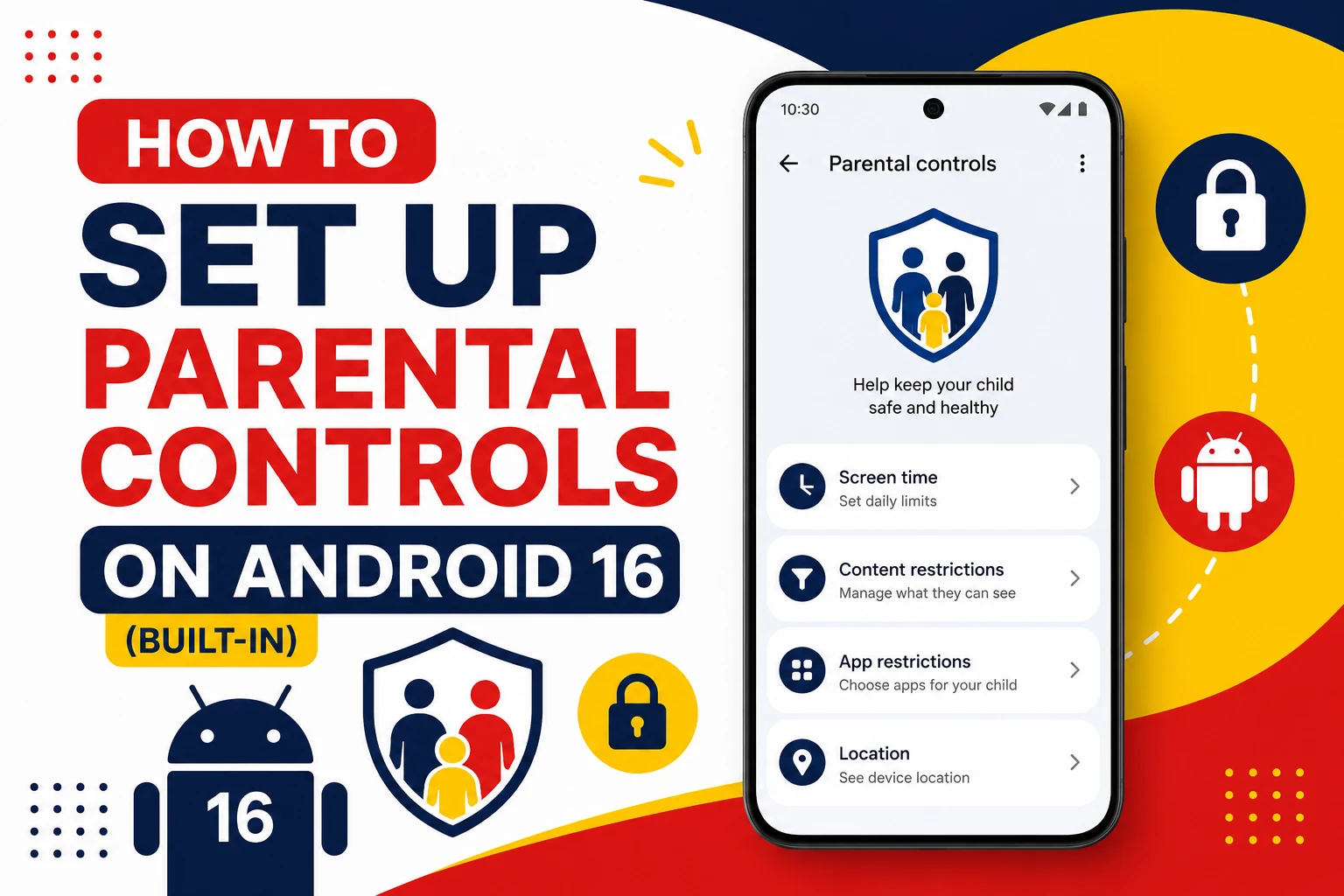
How to Set Up Parental Controls on Android 16 (Built-In)
Android 16 introduced dedicated parental controls on Android built directly into Settings — no third-party app needed.
⚠️ Note: This feature is currently available on Pixel phones and tablets running Android 16+. On other Android devices, search “Parental Controls” in Settings or go to Settings → Digital Wellbeing → Parental Controls.
How to set it up:
- Swipe down on the child’s device and tap the gear icon to open Settings
- In the search bar, type “Parental Controls” and tap the result
- Set a PIN to protect the settings
- Toggle on the controls you need
What you can control:
- Set daily screen time limits for the whole device
- Schedule downtime to automatically lock the device at night
- Limit or block time spent on specific apps
- Grant extra time when a limit is reached
- Quick-access path to set up Google Family Link for more advanced controls
✅ Best for: Parents who want a quick, no-app setup on a Pixel device running Android 16+.
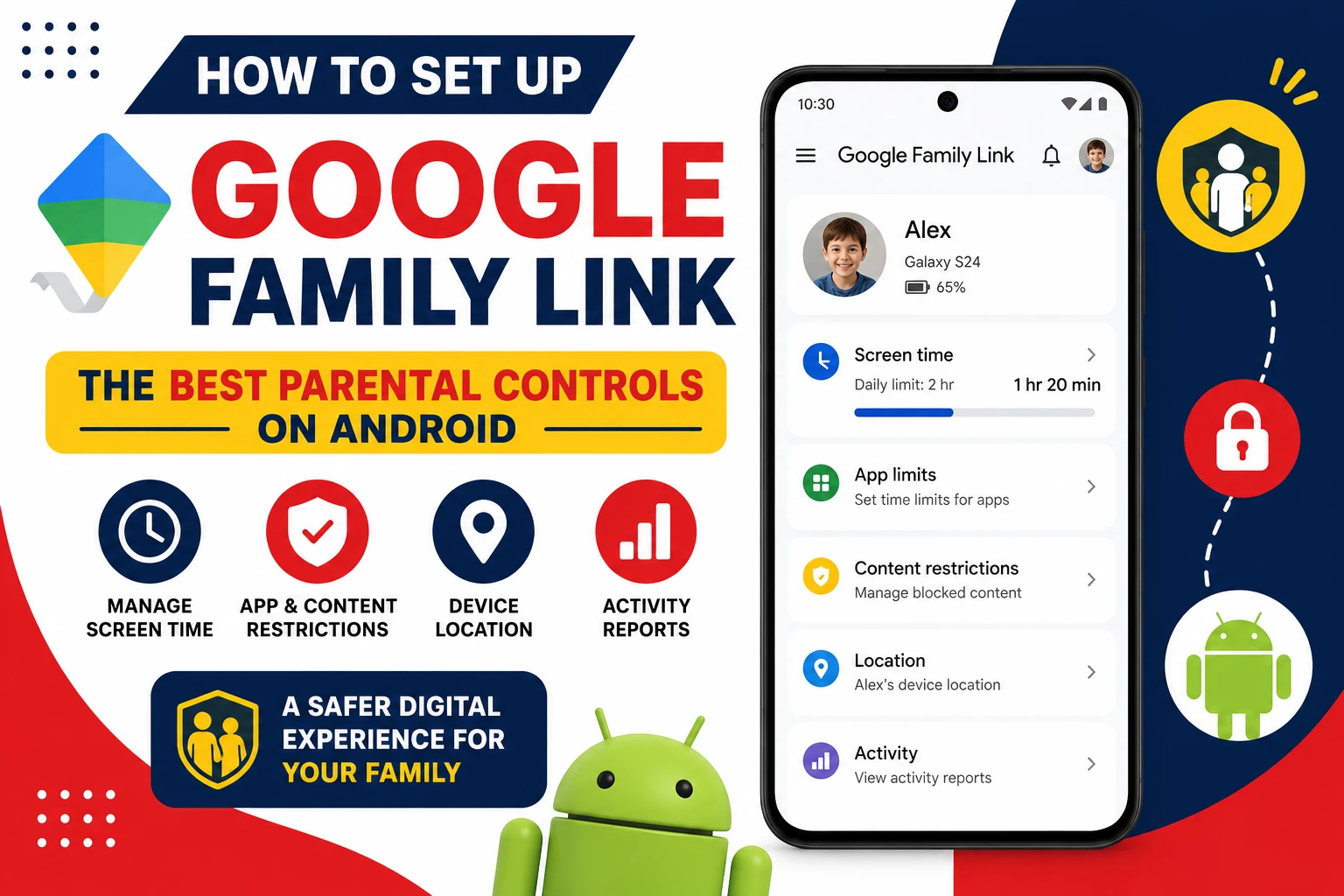
How to Set Up Google Family Link — The Best Parental Controls on Android
For most families, Google Family Link is the best way to manage parental controls on Android. It lets you control your child’s device remotely from your own phone.
You can approve app downloads, set screen time schedules, track your child’s location, and more — all from one free app.
What You Need Before Starting
- A Google Account for your child (Family Link can create one)
- The Family Link app installed on the parent’s phone (available for Android and iPhone)
- Both devices connected to the internet
- Child’s device must run Android 5.0 (Lollipop) or higher
How to Set Up Google Family Link Step by Step
On the parent’s phone:
- Download Google Family Link from the Google Play Store (or App Store on iPhone)
- Open the app and tap Get Started
- Select Parent
- Follow the prompts to add your child’s Google Account
- If your child does not have a Google Account, tap Create account for your child
On the child’s Android device:
- Open Settings → Digital Wellbeing and Parental Controls → Parental Controls
- Sign in with the child’s Google Account
- Accept the Family Link supervision invitation
- Done — the parent account now manages the device remotely
What Google Family Link Parental Controls Include
| Feature | What It Does |
|---|---|
| ✅ App approvals | Every Play Store download requires your approval before it installs |
| ✅ Screen time limits | Set daily device limits or per-app time budgets |
| ✅ Bedtime schedule | Device locks automatically at a set time |
| ✅ Content filters | Filters mature content in Search, Chrome, YouTube & Play Store |
| ✅ Location tracking | See real-time device location on a map |
| ✅ School time mode | Limits device to approved apps during school hours |
| ✅ Remote lock | Lock the device instantly from your phone at any time |
| ✅ Activity reports | Weekly summaries of app usage and screen time |
| ✅ Purchase approvals | Approve or deny in-app purchases on Google Play |
💡 Pro Tip: Family Link parental controls on Android work best for children under 13. When a child turns 13, they can choose to unenroll — but the parent receives a notification before that happens.
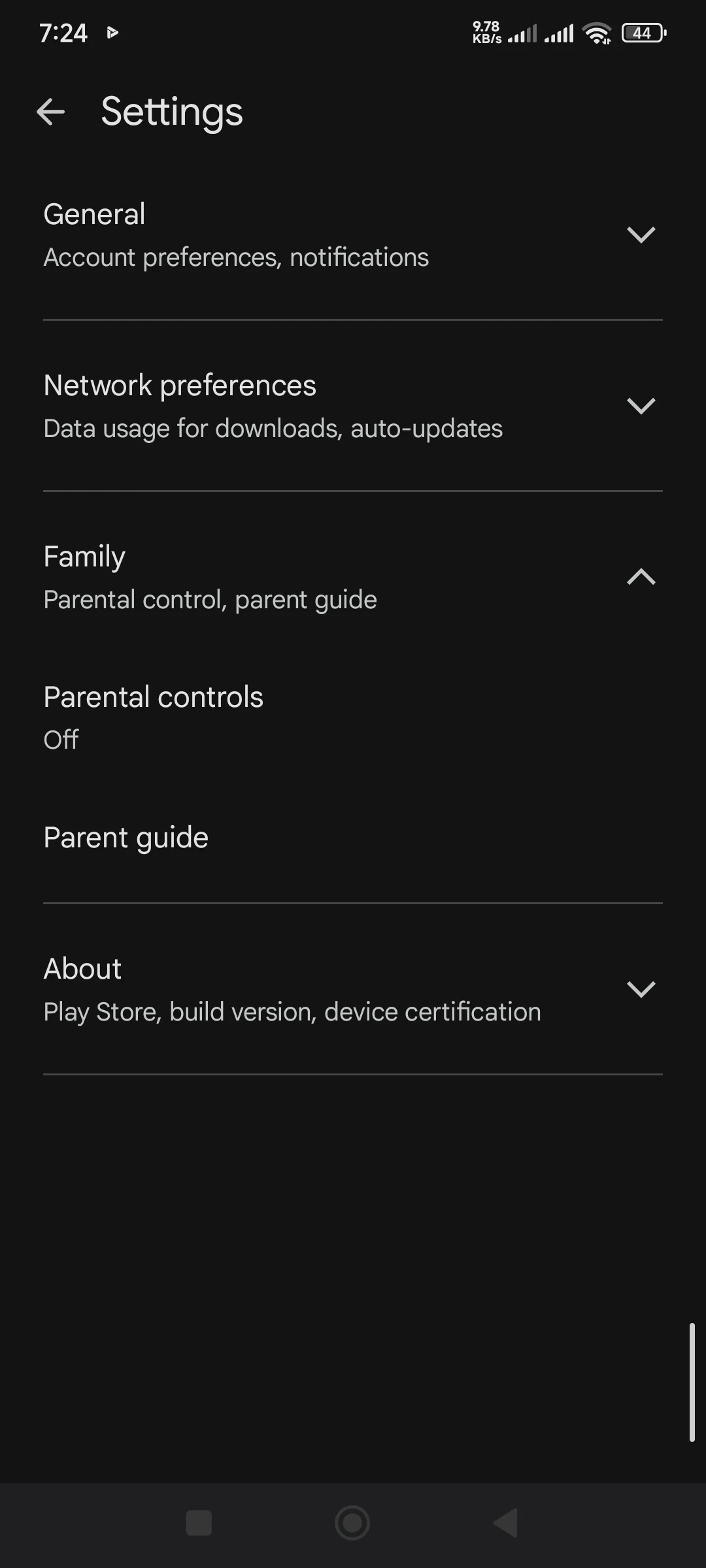
How to Enable Parental Controls on Android via Play Store
Even without Family Link, you can use parental controls on Android through the Play Store to prevent your child from downloading inappropriate apps, games, or content.
How to set it up:
- Open the Google Play Store
- Tap your Profile icon in the top right corner
- Go to Settings → Family → Parental Controls
- Toggle Parental Controls ON
- Create a PIN (separate from your screen lock)
- Set content ratings for:
- Apps & Games (Everyone / Teen / Mature 17+)
- Movies (G / PG / PG-13 / R)
- Music (Allow or block explicit content)
- Books (Filter mature content)
⚠️ Important: Play Store parental controls only apply to Google Play’s billing system. They do not control downloads from web browsers or third-party app stores.
✅ Best for: Shared family devices or as a backup layer alongside Family Link.
Android Parental Controls via Digital Wellbeing & Screen Time
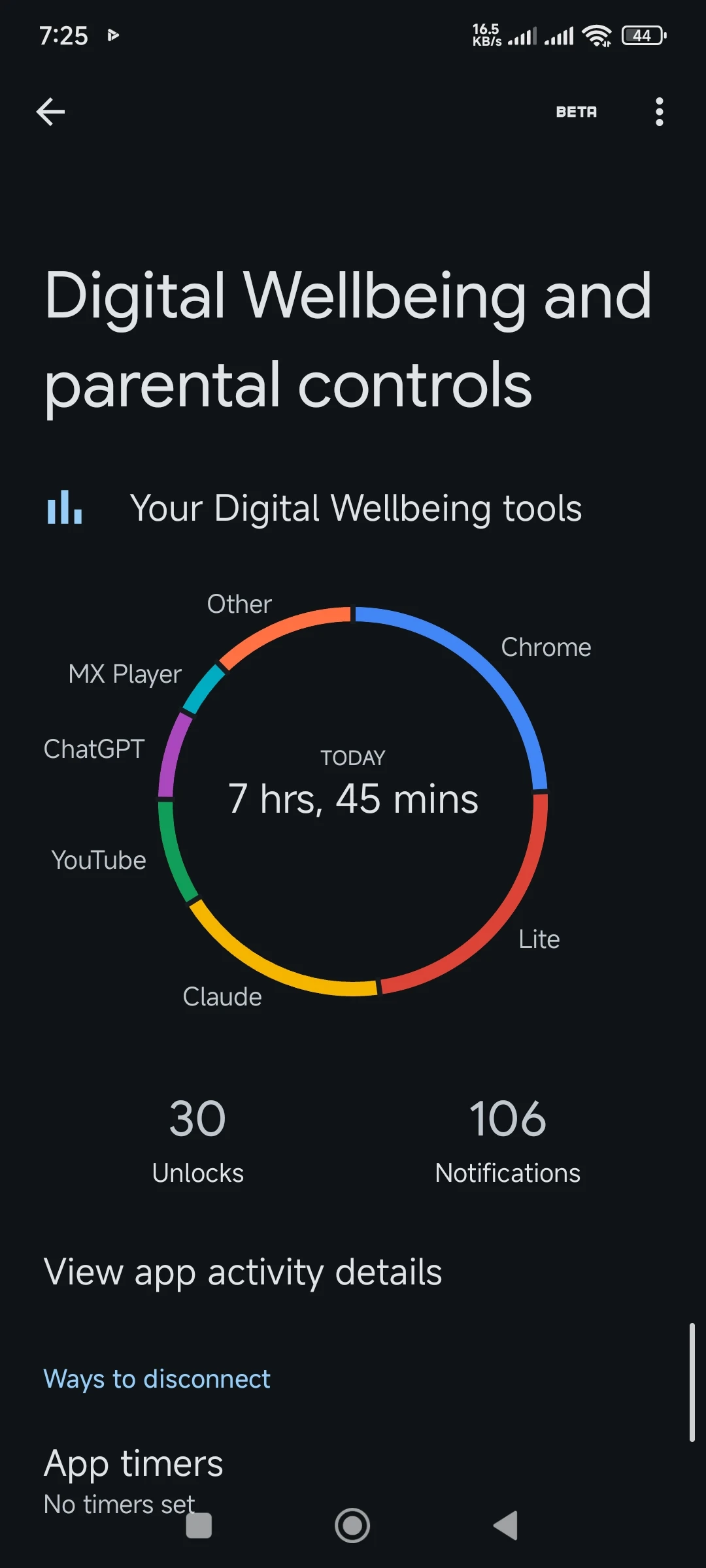
Every Android device running Android 9 or later includes Digital Wellbeing built in. It is a powerful tool for managing screen time as part of your Android parental controls setup.
How to find it:
Go to Settings → Digital Wellbeing & Parental Controls
Key features:
- App Timers — Set a daily time limit for each app (e.g. 30 minutes of YouTube per day)
- Bedtime Mode — Turns the screen grayscale and activates Do Not Disturb at night
- Dashboard — Clear visual breakdown of how time is spent on the device
- Focus Mode — Pauses distracting apps on demand
⚠️ Limitation: A tech-savvy child can reset app timers without a PIN. Combine Digital Wellbeing with Google Family Link for stronger, tamper-resistant parental controls on Android.
YouTube Kids — Essential Parental Control for Android
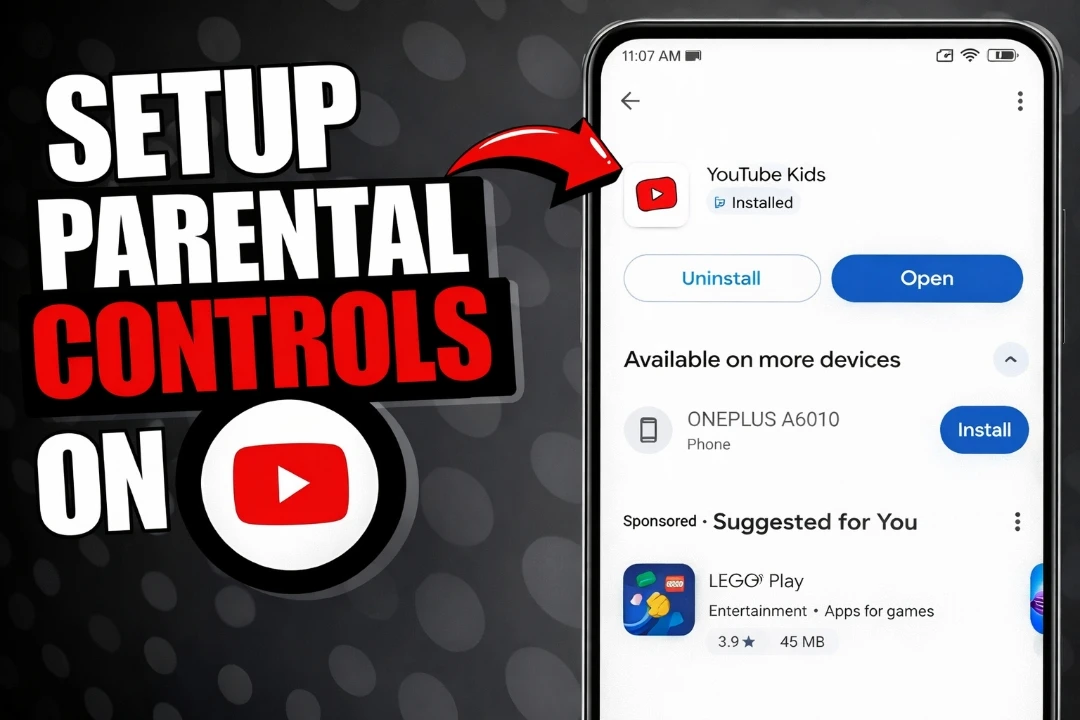
If your child watches YouTube, replace the standard app with YouTube Kids. It is one of the most important parental controls on Android for families with young children.
How to get it: Search “YouTube Kids” on the Google Play Store — it is free.
What makes it different:
- Age buckets: Preschool, Younger, and Older (up to age 12)
- Parents can block specific videos or channels instantly
- Search can be disabled entirely for younger children
- No ads for adult products or services
- Built-in watch timer to limit total viewing time per day
✅ Best for: Children aged 2–12. For teenagers, enable Restricted Mode in the standard YouTube app instead.
Samsung Parental Controls on Android (One UI)
If your child uses a Samsung Galaxy device, One UI adds extra parental tools on top of the standard parental controls on Android.
How to access it:
Settings → Digital Wellbeing and Parental Controls → Parental Controls
Then tap “Let’s do this” and sign in with the child’s Google Account to link with Family Link.
Samsung-specific features:
- Parental Controls PIN — A separate PIN from the screen lock
- Samsung Kids mode — Replaces the launcher with a fully walled-off interface showing only approved apps. Designed for children aged 3–8
- Screen Time by Day — Set different daily limits for weekdays and weekends
- Works seamlessly alongside Google Family Link for combined remote + on-device management
💡 Samsung Kids is pre-installed on most Galaxy devices. The child cannot exit without the parent’s PIN.
Quick Comparison: Best Parental Controls on Android
| Method | Remote Control | Best Age Group | Cost | Difficulty |
|---|---|---|---|---|
| Android 16 On-Device Controls | ❌ No | All ages | Free | ⭐ Easy |
| Google Family Link | ✅ Yes | Under 13 | Free | ⭐⭐ Moderate |
| Play Store Restrictions | ❌ No | All ages | Free | ⭐ Easy |
| Digital Wellbeing | ❌ No | Teens | Free | ⭐ Easy |
| YouTube Kids | N/A | 2–12 years | Free | ⭐ Easy |
| Samsung Kids / One UI | Partial | Ages 3–8 | Free | ⭐ Easy |
TechMilkyWay Verdict
For most families, the strongest parental controls on Android setup combines two tools:
Google Family Link handles the big picture — app approvals, screen time, purchase control, remote lock, and location tracking. Play Store Parental Controls adds a PIN-protected backup so no one can sneak in an inappropriate download.
If your child is under 8, add YouTube Kids and turn on Samsung Kids (on Galaxy devices) for a fully locked experience. If you are on a Pixel with Android 16, start with the built-in Parental Controls for a quick setup before diving into Family Link.
The best Android parental controls setup is the one you actually maintain consistently. Android gives you the tools to do that — all for free.
🔗 You might also like:
Frequently Asked Questions About Parental Controls on Android
Does Android have parental controls built in?
Yes. Android 16 added dedicated Parental Controls in Settings, currently available on Pixel devices. Older Android versions include Digital Wellbeing and Play Store restrictions. Google Family Link is also free to download from the Play Store.
Is Google Family Link free?
Yes. Google Family Link is completely free — no subscription, no hidden fees. The parent app works on both Android and iPhone. The child supervision app requires Android 5.0 or higher.
Can my child bypass Google Family Link?
It is difficult. A child would need to factory reset the device or use a different Google account. Combining Family Link with Play Store restrictions and a screen lock the child does not know gives the strongest protection.
What age is Google Family Link designed for?
Family Link is designed primarily for children under 13. When a child turns 13, they can choose to unenroll — but the parent receives a notification before that happens.
Can I use parental controls on a Samsung Galaxy?
Yes. On Samsung Galaxy devices, go to Settings → Digital Wellbeing and Parental Controls → Parental Controls and tap “Let’s do this” to link with Google Family Link. Samsung Kids mode provides a fully locked launcher for children aged 3–8.
Does Family Link work on iPhones?
The parent management app works on iPhone, but the child supervision app only runs on Android. For a child using an iPhone, use Apple Screen Time instead.
Found this guide helpful? Share it with other parents!
🌌 TechMilkyWay — Navigating the Universe of Technology.
Also Read
- Best Budget Tablets in 2026
- Best Budget Phones in 2026
- Best Budget Laptops in 2026
- Best Budget Smartwatches in 2026
- GaN, PD & PPS Charging Explained
- MacBook Neo 2026 Review
Quick Links: Home | Blog | Reviews | Buying Guides | Tech News | Gaming | Gadgets | Contact Us | About Us | Affiliate Disclaimer | Facebook | X | Instagram
© 2026 TechMilkyWay — Navigate The Universe of Technology.